 f678d7d20f
Some checks failed
CI / Test Linux app (push) Has been cancelled
Adds validate_sound_path() that checks file type, allowed directories, and known audio extensions. Updates play() to use validation before passing paths to audio players. |
||
|---|---|---|
| .. | ||
| blitztext | ||
| packaging | ||
| tests | ||
| .gitignore | ||
| blitztext.service | ||
| CHANGELOG.md | ||
| install.sh | ||
| README.md | ||
| requirements.txt | ||
Blitztext for Linux (native dictation)
A native Linux port of the Blitztext workflow: focus any text field → press a hotkey → speak → the text is typed into that field, optionally rewritten by an LLM first (e.g. turn rough speech into a nicer, more detailed email).
This runs on the host (not in a container), so it can type into any
application — the Linux equivalent of the macOS app's Accessibility-based
auto-paste. (A sandboxed Docker/browser version can't do that; an earlier
experiment along those lines was moved out to
~/Docker/correspondence/blitztext.) Batch transcription is local via
faster-whisper; live streaming can use a local Riva/NIM realtime server. Only
the optional rewrite step calls out to an LLM.
Inspiration
Blitztext App Linux is inspired by cmagnussen/blitztext-app, the original macOS menu-bar workflow for turning speech into text and cleaner writing. This Linux version keeps the workflow but uses Linux-native pieces: GTK, AppIndicator, global hotkeys, faster-whisper, optional Riva/NIM realtime STT, and xdotool.
How it works
hotkey ──▶ record mic (pw-record/arecord) ──▶ faster-whisper (local)
                                                    │
                          ┌── mode "transcribe" ────┤
                          │                          └── mode "rewrite": LLM (OpenAI-compatible)
                          ▼
                 xdotool types it into the focused window

mode "stream" ──▶ mic PCM chunks ──▶ Riva/NIM realtime WebSocket ──▶ live xdotool typing
Each normal hotkey toggles: press to start recording, press again to stop — then it transcribes, optionally rewrites, and types the result where your cursor is. Streaming workflows type stable words live while you speak.
Cancel by voice: say "abbrechen" (or "cancel") at the start or end of a
clip and the whole dictation is discarded — never routed, rewritten, or typed.
It's the rescue for an accidentally triggered (e.g. wakeword) recording. Set the
words under [routing] cancel_keywords (default ["abbrechen", "cancel"]; an
empty list turns it off).
Send by voice: say a distinctive phrase like "computer send" at the start
or end of a clip and the word is stripped, then the rest is typed and submitted
with Enter — the spoken equivalent of "stop + paste + Enter", ideal hands-free.
Off by default; set the phrases under [routing] send_keywords (use a multi-word
phrase so a sentence merely ending in "send" doesn't submit by accident).
While you dictate, an optional on-screen overlay (Settings → General →
"Visual overlay", default on) shows a translucent bubble at the cursor with a
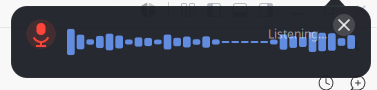
pulsing microphone, a live waveform of your mic level, and the recognised text —
word-by-word in streaming mode, or the final result as a brief confirmation. Its
tail points at the text caret (via AT-SPI accessibility) or the mouse pointer; it
is click-through, never steals focus, and also gives hands-free wakeword sessions
visible feedback. Tune the anchor with [general] overlay_anchor. X11 only.
Screenshots
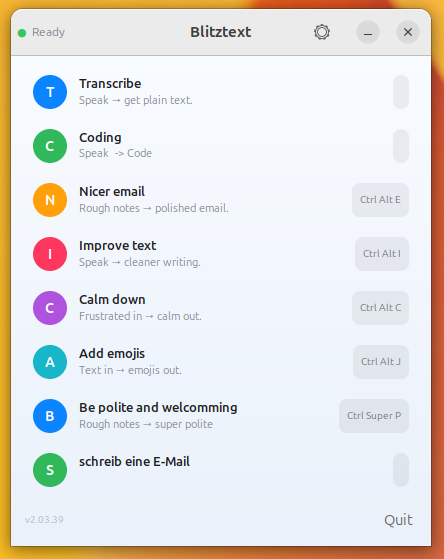
Everything is configured in the Settings window — the sidebar gives quick access to every page. Click any image to open it full size.
Main panel & overlay


Left: Control panel listing all presets with icons, descriptions, and hotkeys. Right: On-screen overlay showing the live waveform while listening.

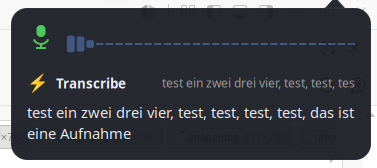
Overlay after transcription — preset name and recognised text appear at the cursor.
Settings — General & Input


Presets — dictation actions with keywords, hotkeys, LLM mode, and custom prompts. General — microphone, output mode, language hint, notifications, overlay, autostart.


Keyboard — modifier-key scheme or direct hotkeys, quality gate, audio cues. Wakeword — hands-free dictation via a Wyoming/openWakeWord server, with live level meter and model picker.
Settings — Engines


STT Engines — speech-to-text back-ends (local faster-whisper, OpenAI-compatible server, or Riva realtime), with green/red status dot and Test button. LLM Engines — language-model back-ends for text rewriting (LAN server or cloud service).
Settings — Benchmark


Benchmark — STT — compare engines against a reference WAV + transcript; table shows speed, accuracy, device, and language support. Benchmark — Wakeword — stress-test wakeword detection via a TTS server, reporting recall and false-fire rates per voice.
Settings — Log & About


Log — live activity log for recording, transcription, routing, and wakeword events. About — version, source link, inline changelog, and licence.
Requirements
- X11 session (this uses
xdotool; Wayland would needydotool/wtype). - Host tools:
xdotool,notify-send(libnotify-bin), and a recorder (pw-recordfrom pipewire, orarecord/parecord).sudo apt install xdotool libnotify-bin pipewire-bin - Python 3.11+.
- Optional realtime STT streaming: a Riva/NIM realtime server such as Nemotron
ASR Streaming, reachable through
/v1/realtime.
Install
Option A — Debian package (recommended on Ubuntu/Debian)
Build a .deb and install it with the Software app or apt:
cd linux
bash packaging/build-deb.sh            # -> dist/blitztext_<ver>_arm64.deb
sudo apt install ./dist/blitztext_*.deb   # or double-click the .deb in Files
This installs blitztext to /opt/blitztext (a self-contained bundle — no pip
step), adds a Blitztext entry to your app grid, and pulls in the system deps
(python3-gi, xdotool, libnotify-bin, a recorder). Launch it from the app
grid, or run blitztext / blitztext gui from a terminal. Remove with
sudo apt remove blitztext.
Option B — run from source (venv)
cd linux
./install.sh
This creates .venv, installs the Python dependencies from requirements.txt,
and writes the default config to ~/.config/blitztext/config.toml.
For the tray from source, the venv must be built on a Python that can see the system
python3-gi—install.shusespython3 -m venv --system-site-packages, so use the system/usr/bin/python3(a conda/miniforge Python won't see the apt-installedgi). The.debhandles this for you.
Run
Three front-ends, same engine layer (STT engines + global hotkeys + xdotool typing):
# optional: only needed for the "rewrite" workflows
export OPENAI_API_KEY=sk-...

.venv/bin/python -m blitztext tray   # system-tray menu (macOS-menu-bar-like, default)
.venv/bin/python -m blitztext gui    # control-panel window
.venv/bin/python -m blitztext run    # headless, hotkeys only
Realtime STT streaming
For Nemotron ASR Streaming, add a realtime engine in Settings > Engines with
+ Stream, save/restart, then create or edit a workflow with mode = "stream".
The default realtime URL is:
[[stt_engine]]
name = "Nemotron ASR Streaming"
type = "riva_realtime"
url = "http://127.0.0.1:8006/v1"
model = ""

[[workflow]]
name = "STT Streaming"
hotkey = "<ctrl>+<alt>+s"
mode = "stream"
The current Nemotron ASR Streaming model exposed by the tested NIM is English
en-US, so use language = "en" or language = "en-US" in [general] for
that engine.
System tray (recommended)
The tray is the closest match to the macOS menu-bar app: a status icon with a
menu listing every workflow (click to record), plus Show panel, Settings…,
and Quit. It needs PyGObject (python3-gi) and the GTK/AppIndicator
typelibs — already present on a standard Ubuntu GNOME install (the .deb
declares them as dependencies):
sudo apt install python3-gi      # usually already installed
.venv/bin/python -m blitztext tray
If PyGObject isn't visible, tray prints this hint and falls back to the
window. The venv is created with --system-site-packages so it can see the
system gi — build it from /usr/bin/python3, not a conda/miniforge Python.
Either way, focus any text field and trigger a workflow — by tray menu, panel button, or hotkey (defaults):
| Hotkey | Workflow | What it does |
|---|---|---|
Ctrl+Alt+Space |
Transcribe | Types the raw transcript |
Ctrl+Alt+E |
Nicer email | Rewrites speech into a polished email |
Ctrl+Alt+I |
Improve text | Proofreads / improves wording |
Ctrl+Alt+C |
Calm down | Rewrites an angry message into a calm one |
Ctrl+Alt+J |
Add emojis | Adds fitting emojis |
Configuration
Everything lives in ~/.config/blitztext/config.toml (python -m blitztext config-path prints the location). You can change hotkeys, the Whisper model, and
the rewrite endpoint, and add/edit [[workflow]] blocks with your own prompts.
Local Whisper
[whisper]
model = "small"      # tiny|base|small|medium|large-v3, or a local model path
device = "auto"      # auto tries cuda, falls back to cpu
compute_type = "auto"
On this arm64 host the pip
ctranslate2wheel is CPU-only, so it runs on the Grace CPU withint8. That's fast for dictation (≈2s for a 10s clip withsmall).device = "auto"attempts CUDA and falls back automatically — to get GPU you'd need a CUDA-enabled CTranslate2 build for aarch64/sm_121.
Rewrite endpoint (OpenAI or your local LLM)
[rewrite]
base_url = "https://api.openai.com/v1"   # or e.g. http://localhost:8000/v1 for vLLM/llama-swap
api_key_env = "OPENAI_API_KEY"
model = "gpt-4o-mini"
Point base_url at a local OpenAI-compatible server (vLLM, llama-swap) to keep
rewriting fully on-box too.
Run on login
See blitztext.service for a systemd user unit.
Verified
On this machine (Ubuntu/GNOME, X11, GB10): recorder → valid 16 kHz WAV;
faster-whisper CPU transcription accurate; config + all hotkeys parse; and
xdotool typing of German text into a focused GTK field. The live global-hotkey
loop and the LLM rewrite HTTP call were not auto-tested here (the former hijacks
the keyboard during a session; the latter needs your key) — try them with the
run command above.
CLI
python -m blitztext tray               # tray menu (default)
python -m blitztext gui                # control-panel window
python -m blitztext run                # headless daemon, hotkeys only
python -m blitztext transcribe f.wav   # one-shot, prints text (no hotkeys)
python -m blitztext config-path        # print config location
License
Code is released under the MIT License. See ../LICENSE.
Project names, logos, and app icons are not automatically granted as trademarks or brand assets. See ../TRADEMARKS.md.
Legal / Impressum & Datenschutz
This is an experimental, non-commercial open-source project, provided as-is under the MIT License without warranty or support. Nothing is sold here and no installation or operation is performed on your behalf.
The companion website (blitztext.de) is operated by Blackboat Internet GmbH:
- Impressum: https://martin-bierschenk.de/impressum/
- Datenschutz / Privacy: https://martin-bierschenk.de/datenschutz/